

Image Resolution for Printing: DPI and PPI
Billboards look sharp from the road for the same reason a modest file can fill a living-room wall. Distance, not a magic number, sets what looks crisp.
Key Takeaways
- Pixels are the only real currency: a file's pixel dimensions, such as 6000 across by 4000 down, state how much detail it holds, while a DPI or PPI tag is only an instruction about how densely the pixels would be printed and can be rewritten without touching a single pixel.
- PPI is the file's pixel count divided by the printed size, and the need for it falls with distance: at 12 inches, roughly 290 PPI is all the eye can use; at 24 inches, about 145 PPI; at 3 feet, around 95; at 6 feet, under 50.
- A 4000 by 3000 pixel file gives 250 PPI at 16 by 12 inches, about 167 PPI at 24 by 18 inches, and 100 PPI at 40 by 30 inches, still above the eye's ceiling of around 50 to 60 PPI from across a sofa at five or six feet.
- Do the check yourself: find the file's pixel dimensions and divide the width in pixels by the print width you want in inches; a file's size in megabytes tells you almost nothing, and a copy saved from a social app may hold far fewer pixels than the original.
- Cropping spends pixels and upscaling does not create detail: cropping half a photo's width turns a 6000-pixel file into a 3000-pixel file for printing, and traditional resizing invents new pixels by interpolating between real ones without adding detail that was not captured.
“Is my photo high enough resolution to print large?” is one of the most common questions in all of printing, and it attracts the worst answers — usually a single magic number, 300, quoted as if it settled everything. It does not. Resolution is a relationship between three things: how many pixels your file actually has, how big you print them, and how far away the viewer stands. Understand that relationship — the whole of image resolution for printing — and you can answer the question yourself, for any file and any wall, without a rule of thumb. Here is the whole theory, plainly.
Image resolution for printing starts with pixels
A digital image is a grid of pixels, and the grid’s dimensions — say, 6000 across by 4000 down — are the one true measure of how much information the file holds. Every other number attached to the file is derived or decorative. Camera makers advertise megapixels, which is simply the grid multiplied out (6000 × 4000 = 24 million pixels, or 24 megapixels). Files also carry a tag labeled DPI or PPI in their metadata, and this tag causes endless confusion: it is only an instruction about how densely the pixels would be printed, a default a program wrote down. A file tagged 72 that holds 6000 pixels across contains exactly as much detail as the same file tagged 300. The tag can be rewritten in seconds without touching a single pixel. Chase the pixel dimensions; ignore the tag.
PPI and DPI, finally separated
The two terms get used interchangeably, including by people who should know better, but they name different things. PPI — pixels per inch — describes your image on paper: the file’s pixel count divided by the printed size. Print that 6000-pixel-wide file at 20 inches and you get 300 PPI; at 40 inches, 150 PPI; at 60 inches, 100 PPI. Same file, same detail — spread thinner as the print grows. DPI — dots per inch — belongs to the printer: the number of ink droplets a machine places per inch, which is a much larger number, because a printer lays many droplets to render a single pixel’s color. When a print service asks for “300 DPI files,” they mean 300 PPI of image. Knowing which number is yours keeps you in charge of the conversation.
Why viewing distance changes everything

Here is the fact that dissolves the 300 myth. The human eye resolves detail down to about one arcminute of angle — beyond that, finer detail simply does not register. That translates into a required pixel density that falls as viewing distance grows: at 12 inches, roughly 290 PPI is all the eye can use; at 24 inches, about 145 PPI; at 3 feet, around 95; at 6 feet, under 50. A book is read at a foot, so book printing aims near 300. But nobody views a canvas print from a foot away — a large piece is taken in from across a sofa, at five or six feet, where the eye cannot distinguish 100 PPI from 300. This is why billboards, printed at very low pixel densities, look perfectly sharp from the road, and why big prints from ordinary cameras look fine on real walls. The right question is never “is it 300?” but “how close will anyone actually stand?”
The arithmetic, worked once, in real numbers
Take a completely ordinary file: a phone or camera photo of 4000 by 3000 pixels — twelve megapixels, the size phones have shipped for years. Printed at 16 by 12 inches, it yields 250 PPI: crisp under close inspection, more than anyone needs. At 24 by 18 inches it gives about 167 PPI — still well past what the eye can use from a couple of feet, which is where a piece that size is viewed. At 40 by 30 inches it lands at 100 PPI, and this is where rules of thumb start shouting and the physics shrugs: from across a sofa at five or six feet, the eye’s ceiling is around 50 to 60 PPI, so a 100 PPI print still has headroom to spare. Even at 60 by 45 inches — 67 PPI — the same file hangs together from the distance a piece that large demands of a room. What finally breaks it is not size but scrutiny: lean in to a foot away from any of those prints and you will find the pixels, because at a foot your eye can use nearly 300. Prints are not made for the distance of a lean-in; they are made for the distance of a room.
Image resolution for printing: checking your file
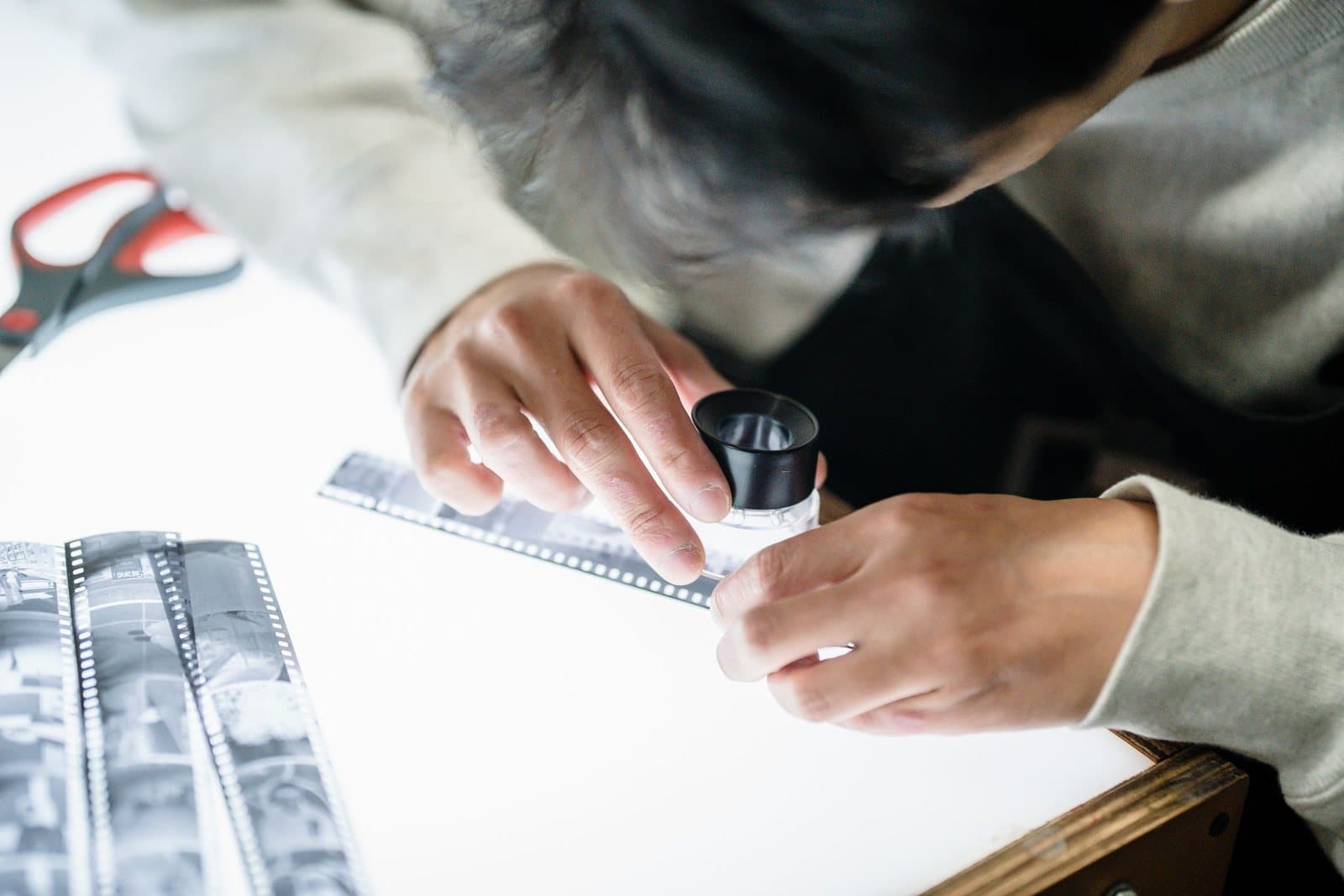
The practical check takes a minute. Find the file’s pixel dimensions — in your photo library’s info panel, in a file’s properties, or in any image editor. Then divide the width in pixels by the print width you want, in inches. A 4000-pixel-wide photo printed 40 inches wide gives 100 effective PPI: from normal room distances, for most subjects, that prints well. The same file at 20 inches gives 200 PPI, which survives close inspection. Two warnings belong here. A file's size in megabytes tells you almost nothing — compression shrinks bytes far more than it shrinks pixels. And a screenshot or a photo saved from a social app may hold far fewer pixels than the original: those services resize aggressively, and the dimensions you find on the downloaded copy are the ones that count. For turning a phone photo into a print specifically, our companion guide on phone photos as prints covers the practice end of the same math.
Why canvas is the forgiving case
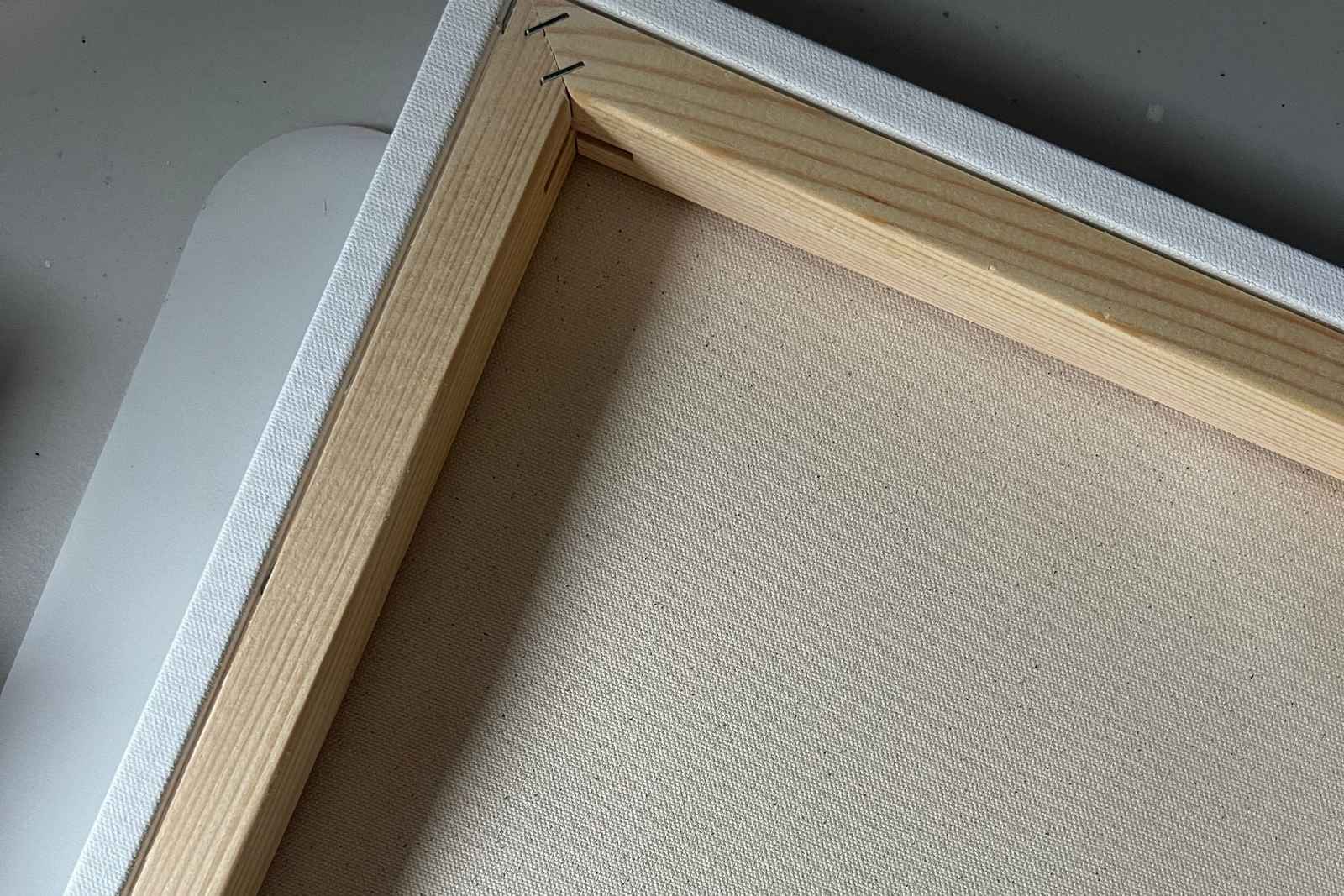
Everything above assumes a neutral surface, and canvas is not one — it is a textured one, which works quietly in your favor. The weave of a canvas print breaks up the image at a scale finer than the eye follows, and in doing so it masks a share of any softness in the file: edges that would look plainly interpolated on glossy paper read as texture on canvas. This is not magic and it does not rescue a genuinely tiny file, but it is one honest reason canvas prints so often succeed at sizes that the arithmetic says should be marginal. Glossy, smooth-surface prints are the unforgiving formats; they show every pixel of what the file holds, which cuts both ways.
Cropping spends pixels too
One quiet thief of resolution deserves its own paragraph: the crop. Every number in this guide uses the pixels that actually reach the print, and cropping spends them fast. Crop away half a photo’s width to fix a composition, and a 6000-pixel file becomes a 3000-pixel file for printing purposes — at a 30-inch width, that is the difference between 200 PPI and 100. Aspect-ratio changes do the same: forcing a 3:2 photograph into a square print discards the ends whether you notice it happening or not. None of this argues against cropping, which is often the best editing decision available. It argues for doing the division afterward, with the cropped dimensions, so the number you judge is the number you are actually printing — and, for judging the photo itself, choosing photos that print well on canvas is the companion checklist: strong light, a clear subject, and edges that can spare the wrap.
Upscaling, honestly
What if the math says your file is short? Software can enlarge a file, and the honest description of what it does matters. Traditional resizing invents new pixels by interpolating between real ones — it smooths, but it adds no detail that was not captured; the print gets softer, not sharper, just more gracefully so. Newer AI-based upscalers do something different: trained on millions of images, they guess plausible detail — eyelashes, brick texture, hair — and paint it in. The guesses often look convincing, especially for scenery and painterly subjects; they are riskiest exactly where you care most, in faces and in text, where a plausible invention is also a visible lie. A modest upscale, viewed from a sensible distance, is a legitimate tool. A four-times enlargement of a small file sold as “high resolution” is marketing wearing the theory’s clothes — and it is why, on our custom printing page and in the FAQ, we would rather show you the arithmetic than a badge.
The short version of image resolution for printing: count pixels, divide by inches, ask how far the viewer stands. That one habit will steer you right on every print you ever order, from any shop, including ours; it is one item on the longer checklist in the buyer’s guide to canvas print quality.
More in Care & Print-Craft Quality
Continue exploring: Care & Print-Craft Quality guides · All guides